Step 5 of 8
5. Connect servers
Copy link to the page “5. Connect servers”Once a server is connected, sslbrain finds the services and certificates on it. Servers get a service agent. The service agent finds services and certificates on the server and carries out deploy rules. It does not choose certificates by itself: a deploy rule does, which you create in step 8. Network equipment and cloud services that cannot run an agent are connected without one.
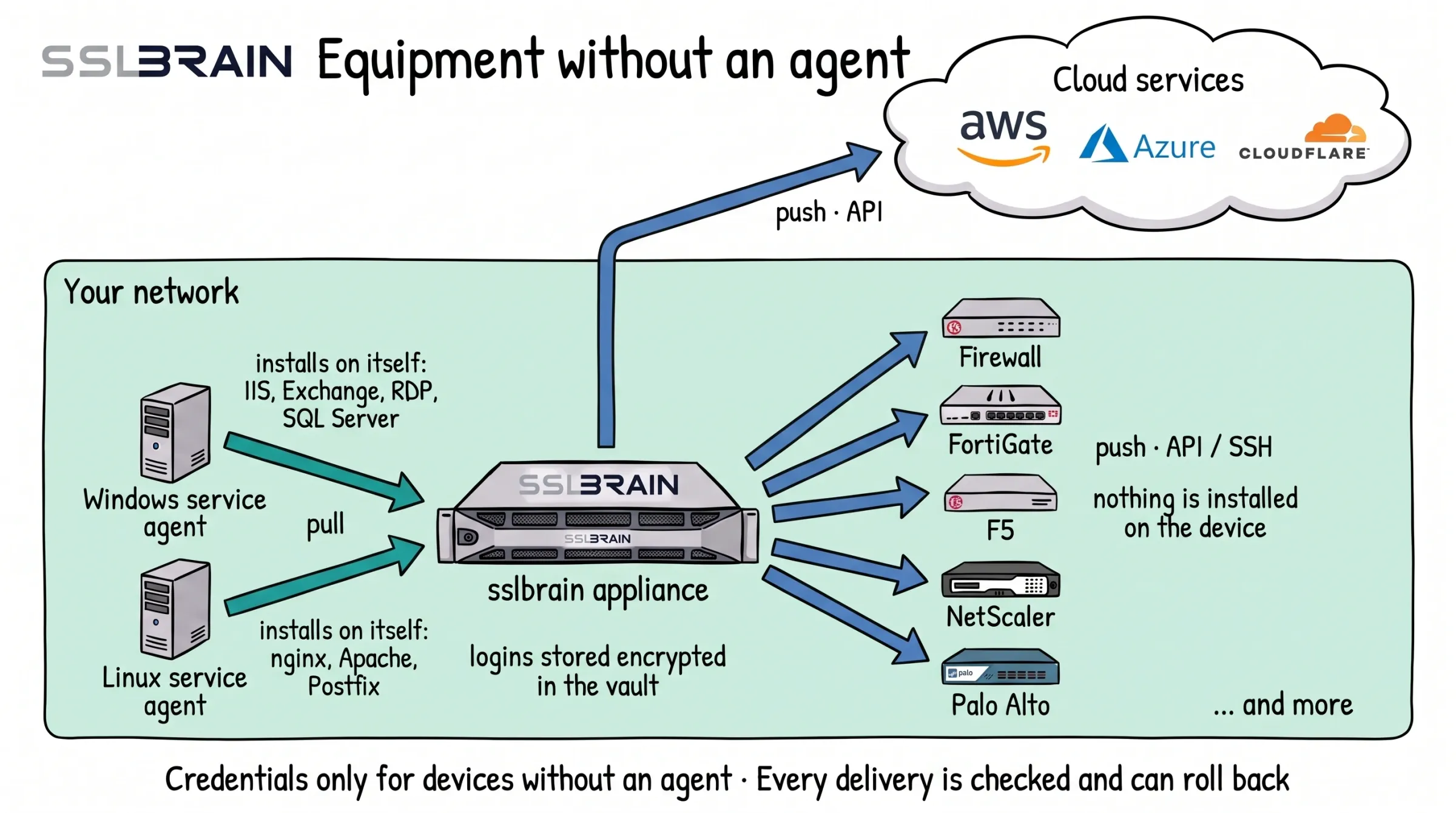
- Windows and Linux servers get a service agent. It fetches the certificate from the appliance and installs it on its own server: IIS, Exchange, RDP and SQL Server on Windows, nginx, Apache and Postfix on Linux.
- Equipment that cannot run an agent, such as FortiGate, F5, NetScaler and Palo Alto, gets the certificate from the appliance. It logs in through the device’s API (usually port 443) or over SSH (port 22) and installs it. Nothing is installed on the device.
- Cloud services such as AWS, Azure and Cloudflare get the certificate from the appliance through their API.
- The appliance stores logins only for equipment without an agent, encrypted in its vault. Every delivery is checked, and if it fails, sslbrain can roll back to the certificate that was there before.
Choose the type of server
Copy link to the section “Choose the type of server”A Windows server is connected from Servers › Install service agent with one line you copy to the server. The page creates an install code itself if none is open. The page shows no Linux line until the appliance has Linux agent 0.7.0.
- Windows server: Windows servers.
- Linux server: Linux servers.
- Firewall, load balancer, NAS or cloud service: Devices without an agent.
If you have many Windows servers, use Roll out the service agent to many Windows servers.
Why a service agent
Copy link to the section “Why a service agent”The service agent is installed on the server and contacts the appliance itself over outbound HTTPS. You open no port into the server, and sslbrain does not store the server’s login. The agent checks the signature on every script and by default runs only FairSSL’s packages (Your own scripts).
Choose how the agent reaches the appliance
Copy link to the section “Choose how the agent reaches the appliance”If the server is on the same network as the appliance or connected to it by VPN, the agent reaches the appliance directly over HTTPS, port 443 by default. Use the first line on the page, Windows (recommended). It carries the appliance’s address. See How the agent reaches the appliance.
If the server is in a branch office, at a hosting provider or behind a firewall with no route to the appliance, the connection goes through sslbrain Cloud. Use the line under The server cannot reach the appliance directly. See Servers outside your network.
The first line gives the agent sslbrain Cloud as fail-over after the appliance while Allow agent communication through Cloud is on under Settings › Security and the appliance is connected to sslbrain Cloud (The order).
Approve new servers
Copy link to the section “Approve new servers”A server that connects with an install code is approved by the code and is listed under Servers at once. Codes are created and closed under Install codes on the Install service agent page, and the page creates a code itself if none is open. Only an administrator can open the page.
A machine that looks like a reinstall of a known server (same host name and the same machine ID or IP address) always waits for an administrator:
- Connected with an install code, it waits under Servers waiting for approval on the Install service agent page. Compare the Agent key with the key in the agent’s log on the server, and click Approve or Reject.
- Installed with
SERVERalone, it waits under Servers. Choose Approve as reinstall to move the server and its rules over to the reinstalled agent, or Approve as new server.
A server installed with SERVER alone, without a code, also waits under Servers until an administrator approves it. Check the host name, operating system and agent version, and click Approve or Reject. Approve only machines you recognise.
A machine that waits for approval for 14 days gets the status Not approved for 14 days and has to be installed again.
The servers in sslbrain
Copy link to the section “The servers in sslbrain”Every connected server is listed under Servers with its status, Last seen and the number of Managed Endpoints. The row This appliance is the appliance itself.
The server’s page has the panel Service agent with status, version and Last check-in. This is also where the agent is updated (Keep service agents up to date).
The licence covers a number of servers, the oldest first. Servers beyond that number are deactivated and get no certificates.
sslbrain finds the services on the server
Copy link to the section “sslbrain finds the services on the server”Once the agent is approved, sslbrain starts discovery on the server by itself. The result arrives the next time the agent checks in. Until then the server’s page shows “Discovery running”.
On a Windows server, discovery finds IIS, Remote Desktop, Exchange, SSL bindings (netsh), Windows CA (AD CS), Web Application Proxy and the certificates in the Windows certificate store.
- The services appear on the server’s page under Managed Endpoints. They can be chosen as the target of a rule in step 8 (Choose the services).
- The certificates appear under Certificates › Found on servers (Certificates on the servers).
- sslbrain repeats discovery once a month at 02:00. If you have installed a new service, click Run discovery on the server’s page.
Check that it works
Copy link to the section “Check that it works”- The server is listed under Servers with status Online and a recent time in Last seen.
- Once discovery has finished, the server’s page shows at least one service under Managed Endpoints.
- The server’s row under Servers has the button Create rule. It stands out until a deploy rule includes one of the server’s services, and opens the wizard with the server and its services selected (step 8). The Without a rule filter above the list shows every server this applies to, also on the next pages. The server’s page says the same: “The service agent does not install certificates by itself. A deploy rule does.”
If it fails
Copy link to the section “If it fails”- The server does not appear, or Last seen does not change: A service agent does not check in. If the agent has not checked in for more than a day, the server’s page says so.
- Status Unreachable: Test connection could not reach the server. See A server without an agent cannot be reached.
- Status Auth failed: Test connection reached the server, but the login with the credential was refused. See A server without an agent cannot be reached.
- The server is outside your network and cannot reach the appliance: Servers outside your network.