Servers outside your network
Copy link to the page “Servers outside your network”A service agent that cannot reach the appliance directly can send its messages through sslbrain Cloud. Both the agent and the appliance connect outbound only, so you do not open any port into the appliance or the server.
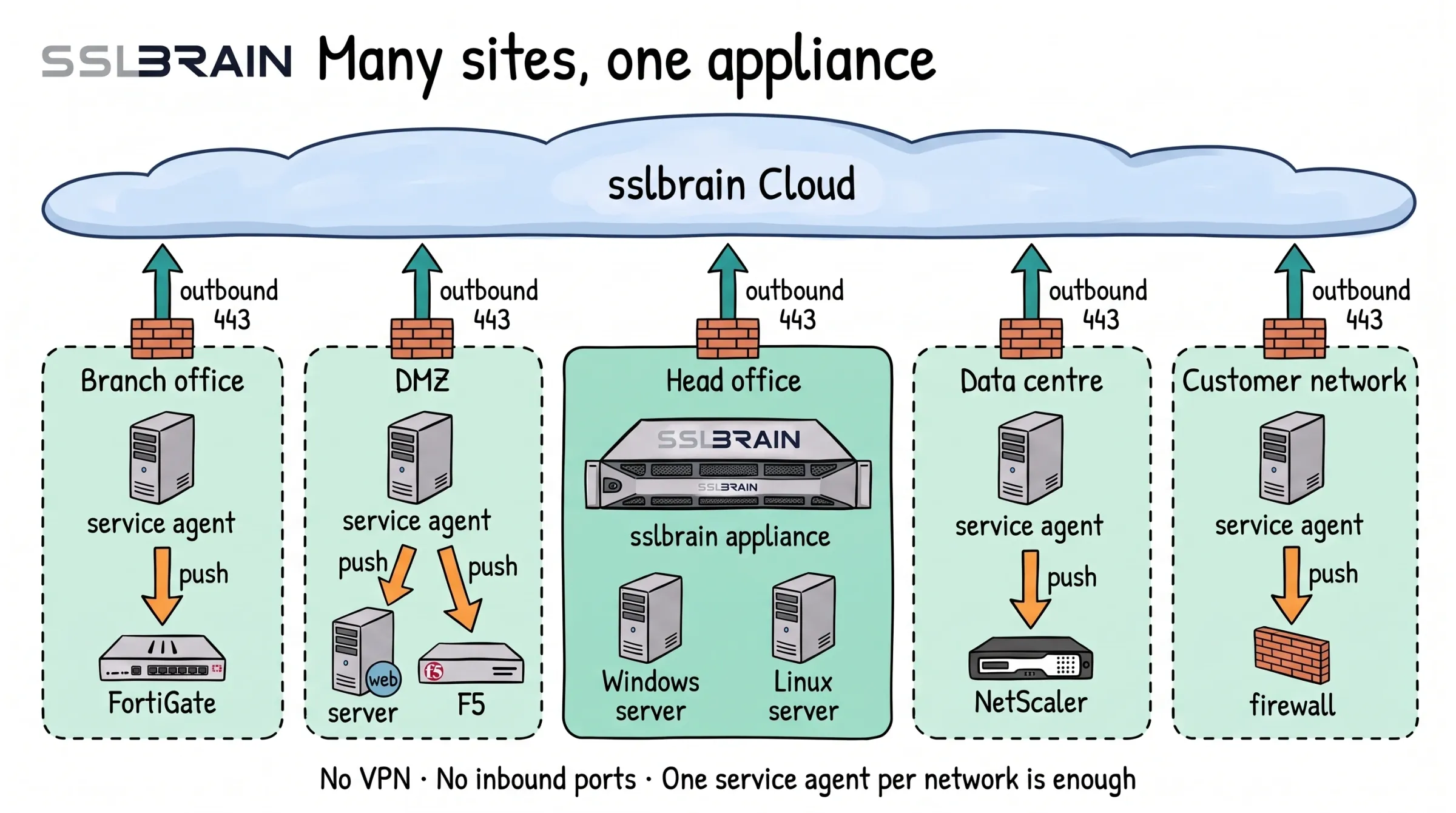
- The sslbrain appliance sits in the head office. Each of the other networks, such as a branch office, a DMZ, a data centre or a customer network, gets one service agent.
- Each network connects only outbound on port 443, through its own firewall, to sslbrain Cloud. There are no connections between the networks.
- The service agent delivers certificates to the equipment in its own network, such as FortiGate, a web server, F5, NetScaler or a firewall.
- No VPN and no inbound ports. One service agent per network is enough.
When servers should go through sslbrain Cloud
Copy link to the section “When servers should go through sslbrain Cloud”- Servers in branch offices or other sites with no VPN to the appliance’s network.
- Servers at a hosting provider or in a cloud.
- Servers behind a firewall that may not open for traffic to the appliance.
- Servers that must carry on when the direct route is down.
Before you start
Copy link to the section “Before you start”- Outbound HTTPS from the server to
sslbrain.comandcloud.sslbrain.comon port 443. The server needs no inbound ports.cloud.sslbrain.comhas the IP address81.27.110.46today, which you can allow outbound.sslbrain.com, where the install script is downloaded from, is on a CDN with other addresses (Network). - Allow agent communication through Cloud is on under Settings › Security. It is by default.
- The Windows agent the lines on Install service agent install. They always install the newest. The page shows no Linux line until the appliance has Linux agent 0.7.0.
Connect a server through sslbrain Cloud
Copy link to the section “Connect a server through sslbrain Cloud”-
Open Servers › Install service agent and choose Windows.
-
Open The server cannot reach the appliance directly, copy the line there, and run it on the server (Windows servers).
The server is then listed under Servers with Through Cloud in the Type column. If it can later reach the appliance directly, click Switch to direct on the server’s page.
A server connected with the first line on the page gets sslbrain Cloud as fail-over after the appliance when the line has cloud in DESTINATIONS.
The licence
Copy link to the section “The licence”Every licence can connect servers through sslbrain Cloud. A Cloud connection is included in Professional and Enterprise. If the licence does not cover it, a server that runs through Cloud:
- is listed as Blocked under Servers and gets no work.
- shows on its page: “This agent runs through sslbrain Cloud, and your licence does not cover a Cloud connection. Switch it to a direct connection, or upgrade the licence.”
- Switch to direct gives the agent the appliance’s direct address. It switches once it has reached the appliance directly, and then gets work again. If it cannot reach the appliance, it stays on Cloud, and the page shows which address and port the server must be able to reach.
- Upgrade opens the licence in sslbrain Cloud.
The same applies to servers already running through Cloud when the licence is downgraded.
The order: direct first, sslbrain Cloud last
Copy link to the section “The order: direct first, sslbrain Cloud last”The agent uses the first address in the list that works. With cloud last, traffic goes through sslbrain Cloud only when the direct route is down.
- If an address fails three times in a row, the agent moves on to the next address.
- After 1800 seconds it tries the first address again.
- Replies from the appliance go back the same way the message came.
- If the agent does not collect a message directly within two check-in intervals, the appliance also places it in the agent’s mailbox in sslbrain Cloud.
The appliance collects messages from sslbrain Cloud every 15 seconds, so a task through sslbrain Cloud takes a little longer. The values are changed under Agents › Connection (Retries and timeouts).
One agent with its own addresses
Copy link to the section “One agent with its own addresses”-
Open the server under Servers.
-
Open Settings for this agent in the Service agent panel.
-
Enter the agent’s list in Addresses in priority order (comma-separated, cloud for sslbrain Cloud). Both
httpsaddresses andcloudare allowed. Removecloudto keep the agent out of sslbrain Cloud. -
Save. The agent gets the list the next time it checks in.
An agent installed without cloud in its list does not get sslbrain Cloud back by itself. An administrator can click Turn Cloud on again for this agent on the server’s page.
If a server must never contact sslbrain Cloud, install the agent with CLOUD=deny on Windows (MSI properties) or --cloud-deny on Linux, or set CloudDeny by GPO under HKLM\SOFTWARE\Policies\sslbrain. This holds whatever the appliance sends.
Turn off agent communication through sslbrain Cloud
Copy link to the section “Turn off agent communication through sslbrain Cloud”Turn off Allow agent communication through Cloud under Settings › Security if service agents may not communicate with the internet.
- Agents that have connected directly at least once lose sslbrain Cloud at their next contact and carry on directly.
- The install codes can no longer be used through sslbrain Cloud, and the section The server cannot reach the appliance directly is not shown.
- Agents that have only connected through Cloud keep the Cloud path, so they can be told to switch. They are listed as Blocked and get no work until they are switched to a direct connection. The setting shows how many that applies to before you turn it off.
The agent’s mailbox in sslbrain Cloud is removed once the agent has taken the new configuration into use, or after 30 days.
If you turn the setting on again, every agent gets sslbrain Cloud as fail-over after the direct address, except agents with addresses of their own, agents installed with CLOUD=deny and agents installed without cloud in DESTINATIONS, for example while the setting was off. The last of these get sslbrain Cloud when an administrator clicks Turn Cloud on again for this agent on the server’s page.
Updating agents through sslbrain Cloud
Copy link to the section “Updating agents through sslbrain Cloud”A Windows agent fetches updates from the first direct address in its list. When it can reach the appliance only through sslbrain Cloud, it is updated with a new MSI file on the server (Agents that cannot be updated from the appliance).
Check that it works
Copy link to the section “Check that it works”The Service agent panel on the server’s page shows:
- Addresses in use with
cloudin the list. - Cloud: Allowed.
- Cloud mailbox: Ready.
- Last reached: Through Cloud or Directly.
If it fails
Copy link to the section “If it fails”- Install service agent does not show The server cannot reach the appliance directly: Allow agent communication through Cloud is off, or the appliance has no connection to sslbrain Cloud.
- The server is listed as Blocked: the licence does not cover a Cloud connection, or agent communication through Cloud is off (The licence).
- Approval gives “The server can only be reached through sslbrain Cloud, and Cloud gave it no connection”: try again shortly. The machine is still waiting for approval.
- Cloud mailbox shows “Cloud refused it; tried again in an hour”: the appliance tries again by itself. Check the appliance’s connection to sslbrain Cloud.
- Cloud shows Opted out or Blocked locally on the machine: the agent is kept out of sslbrain Cloud (One agent with its own addresses).
- The agent does not check in: check that the server can reach
cloud.sslbrain.comon port 443 (The agent does not check in).
What sslbrain Cloud can see
Copy link to the section “What sslbrain Cloud can see”sslbrain Cloud forwards the messages and can neither read, change nor create them. It can delay or drop a message, but it cannot make the agent carry out anything. The install code carries the appliance’s fingerprint, so the agent trusts only your appliance.
sslbrain Cloud sees:
- the installation’s ID and the IDs of the agents’ mailboxes.
- the size of each message and when it was sent.
- the agents’ public IP addresses.
sslbrain Cloud knows the agent by a random pseudonym and stores only a SHA-256 of the agent’s access token.
Messages are signed by the sender (ES384) and encrypted to the recipient (JWE with ECDH-ES and AES-256-GCM). The appliance’s keys are P-384. What else sslbrain Cloud sees from the appliance: Security.