Security
Copy link to the page “Security”The appliance stores the private keys encrypted. It opens them with a key from sslbrain Cloud or with the 12 backup words. FairSSL has no access to the appliance unless you open it yourself.
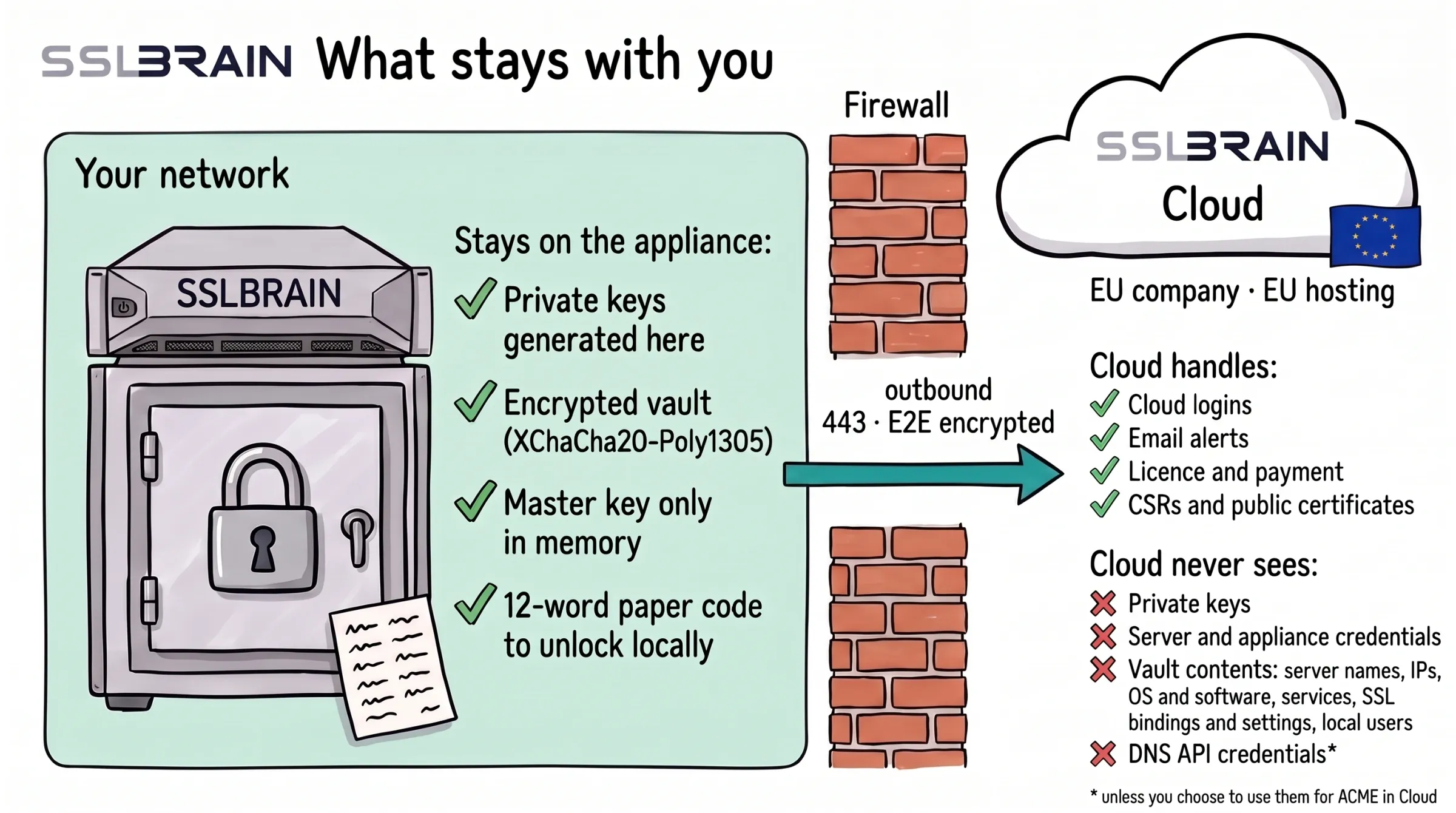
- Stays on the appliance: private keys generated here · encrypted vault (XChaCha20-Poly1305) · master key only in memory · 12-word paper code to unlock locally.
- The appliance talks only to sslbrain Cloud, outbound on port 443 and E2E encrypted. sslbrain Cloud is an EU company with EU hosting.
- Cloud handles: Cloud logins · email alerts · licence and payment · CSRs and public certificates.
- Cloud never sees: private keys · server and appliance credentials · vault contents (server names, IPs, OS and software, services, SSL bindings and settings, local users) · DNS API credentials* (*unless you choose to use them for ACME in Cloud).
How sslbrain fits together
The sslbrain appliance runs in your network and gets certificates from three places: through sslbrain Cloud, which orders from the CAs, directly from an ACME CA, or from your Windows CA through a service agent. The appliance installs the certificates on your servers through the service agent, and on network devices and cloud services directly through their API or over SSH.
Through sslbrain Cloud
- DigiCert
- Let’s Encrypt
- Google Trust Services
- your own ACME CA
Receive the CSR: domain names, the public key and sometimes company details. Never the private key.
Can see
- account and licence
- the appliance’s IP address, hostname, version and usage figures
- CSRs and certificates ordered through Cloud
- notifications Cloud forwards to you
- the KEK that unlocks the vault at startup
Cannot see
- private keys
- credentials for servers and devices
- what is in the vault
Directly from an ACME CA
Professional and Enterprise
From your Windows CA
Enterprise add-on
- Private keys are created here and sent, encrypted, only to the server or device that uses them.
- Keys and credentials are stored encrypted in the vault. Unencrypted, the master key exists only in memory.
- IIS
- ADFS
- Exchange
- SQL Server
- RDP
- Navision / Business Central
- and more
Servers outside your network connect through sslbrain Cloud. Tasks and keys are encrypted to the server, so Cloud cannot read them. Professional and Enterprise
- F5 BIG-IP
- FortiGate
- Kemp
- NetScaler
- Palo Alto
- Sophos
- and more
The vault encrypts the private keys and the other secrets in the database, such as the settings for alert channels. Its key is a master key that exists only on the appliance. There are two encrypted copies of it: one opens with a key from sslbrain Cloud, the other with the 12 backup words.
- At start-up the appliance fetches the key from sslbrain Cloud, opens the vault and wipes the key from memory again.
- If sslbrain Cloud does not answer at start-up, the appliance tries again the next time something needs the vault. It opens on its own once sslbrain Cloud answers.
- After a restore from backup the vault opens only with the 12 backup words, see Save a backup and restore from it.
Each value is encrypted with XChaCha20-Poly1305 (IETF AEAD) and a random 24-byte nonce.
The 12 backup words
Copy link to the section “The 12 backup words”The 12 backup words are the appliance’s emergency key. They are shown once, during first-time setup on the Emergency key screen. FairSSL has no copy.
The words open:
- the vault;
- a sign-in as Admin Local;
- the appliance when it shows Installation locked;
- the local data when the appliance shows This installation has been retired because its licence has moved to another appliance.
Sign in with the words:
-
Click Lost access? Use backup words on the sign-in page.
-
Type the 12 words in the Backup words field. Upper and lower case and extra spaces make no difference.
-
Click Log in with backup words.
The appliance opens the vault, lifts a lockdown and signs you in as Admin Local. At most 30 attempts a minute are allowed. The sign-in is written to the audit log as auth.recovery_login.
The words are 12 random words from a fixed list of 256 English words, 96 bits in total. The key is derived from the words with Argon2id.
Admin Local
Copy link to the section “Admin Local”Admin Local is the appliance’s own account, with the Owner role. It opens only with the 12 backup words and cannot be edited or deleted. While it is in use, the overview shows Emergency access active.
Admin Local can do everything an Owner can, except download a backup and export private keys. Those two need a fresh confirmation of the sign-in, so use your own account for them.
Get an ordinary way in back that does not depend on sslbrain Cloud:
-
Sign in with the 12 backup words. You are now signed in as Admin Local.
-
Open Users and login › Users. Click Edit next to a user and enter a new password. Or click Add user and create a local user with a password and the Administrator role, see Create a user on the appliance.
-
Sign out, and sign in as that user with email and password.
A password set by Admin Local cannot be used to confirm the sign-in afterwards. A Cloud user still confirms through sslbrain Cloud. A local user can download a backup or export private keys only once an Owner or Administrator with a confirmed sign-in has set the password again.
Private key export
Copy link to the section “Private key export”The Private key export card under Users and login › Login and sessions decides who may take a private key out of the appliance. Only an Owner can change it.
| Setting | Options | Default |
|---|---|---|
| Who may export | Nobody, Owner only, Owner and Administrator, Owner, Administrator and Operator | Owner and Administrator |
| Allow unencrypted key | On or off. Applies to unencrypted key PEM and PEM bundle | Off |
| Key exports per user per hour | At most 100 | 10 |
A Viewer can never export a private key. Anyone who is signed in can download the certificate and chain without the key.
Before a key is downloaded, the user must confirm their sign-in. The confirmation is valid for 5 minutes. Every download is written to the audit log.
If a change gives more people access, the Owner must confirm their sign-in. The security recipients on your sslbrain Cloud account receive an email about the change.
A backup also contains the private keys. An Owner can always download a backup after confirming their sign-in. If Who may export is set to Nobody or Owner only, only an Owner can download a backup.
Which data goes where
Copy link to the section “Which data goes where”Your data stays on the appliance and is shown only in the local control panel, with local access. sslbrain Cloud cannot fetch or see it.
Only what you use is sent out of the appliance:
- data about publicly issued certificates;
- sign-in to sslbrain Cloud;
- data for the Cloud ACME server and client;
- the server and certificate data you choose to include in email alerts.
Anonymous metadata is sent to sslbrain Cloud when you issue certificates and use the DNS API proxy.
If you choose to, you can let sslbrain Cloud receive selected diagnostic data, send server information in alert emails, and receive logs for troubleshooting and for improving the product and the agents.
The keys to your DNS API can stay on your network. The appliance calls the DNS provider directly or through our proxy with TLS all the way to the DNS provider, so sslbrain Cloud cannot read them. If you want to use ACME clients directly against sslbrain Cloud, you can choose to store the keys in sslbrain Cloud.
Two kinds of encryption protect data:
- The vault on the appliance uses XChaCha20-Poly1305 with a 256-bit key (Vault).
- Messages between the appliance and the service agents are signed and encrypted with AES-256-GCM, both directly and through sslbrain Cloud, which cannot read them (Servers outside your network).
What sslbrain Cloud can see
Copy link to the section “What sslbrain Cloud can see”FairSSL has no standing access to the appliance. The appliance sends this to sslbrain Cloud:
| When | What |
|---|---|
| Every minute | A heartbeat with disk usage, the number of servers and licensed servers, the diagnostics protocol version, and a nonce that reveals a copy of the appliance |
| Every 15 minutes | A usage report with appliance and controller versions, number of rules, number of service agents by platform and version, and versions and counts of the agent packages that deploy. It names no hostnames, domains, certificates or people |
| Every 4 hours | The running version, when the appliance checks for updates |
| When a certificate is ordered through sslbrain Cloud | The names the certificate is to cover |
| When you sign in with sslbrain Cloud | Who signs in, on which appliance |
More is sent only when you ask for it:
- Alerts that sslbrain Cloud sends for you, such as email, contain the server and certificate data you have chosen to include.
- Diagnostics are off until an administrator switches them on. The appliance then sends the chosen sections about every 15 minutes, without passwords, tokens, API keys and private keys. FairSSL deletes them after 30 days. See Support and diagnostics.
- A support bundle is sent only when someone clicks Send to sslbrain Cloud. See Support and diagnostics.
- Temporary SSH for support can only be opened from the appliance’s own console and closes itself after 24 hours. See Support and diagnostics.
Service agents that reach the appliance via sslbrain Cloud send encrypted messages that sslbrain Cloud can neither read nor change. sslbrain Cloud sees the installation id, mailbox ids, the size and time of each message, and the agents’ public IP addresses. See Servers outside your network.
The appliance needs no inbound ports from the internet, and the service agents have no inbound ports.
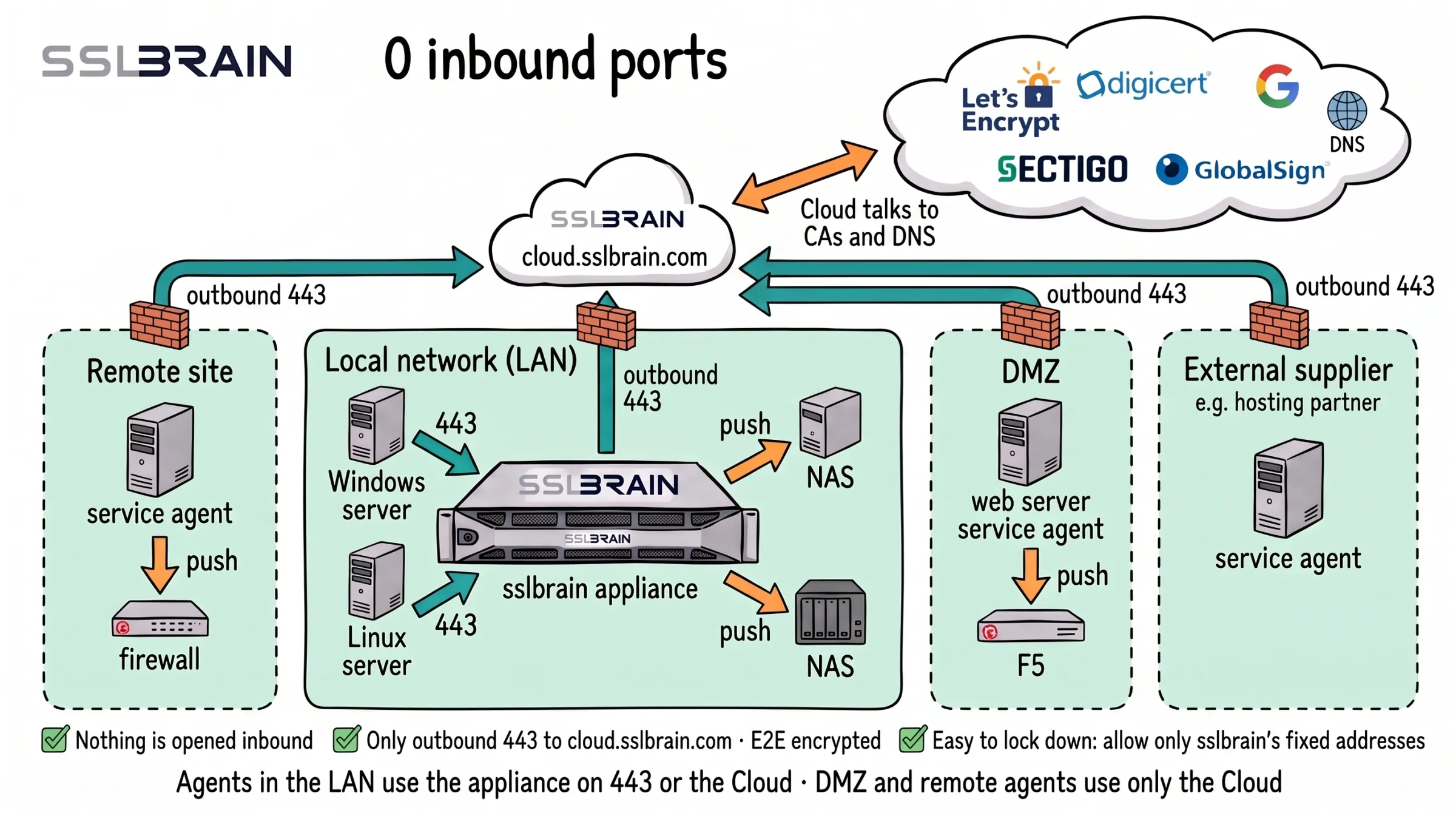
- Nothing is opened inbound: no network needs a port open from the internet.
- Through the firewall only outbound HTTPS on port 443 to sslbrain Cloud, cloud.sslbrain.com. The data is E2E encrypted.
- Easy to lock down: allow outbound 443 only to sslbrain’s fixed IP addresses. The security page in the manual lists every address and port the appliance uses.
- Service agents in the LAN reach the appliance on port 443 or go through sslbrain Cloud. Service agents in a DMZ, at a remote site or at an external supplier talk only to sslbrain Cloud.
- Inside the network ports are still used, but only locally: agents reach the appliance on 443, and the appliance or a service agent delivers to equipment such as a NAS, firewall or F5 over SSH (22) or the device’s API (usually 443). None of them needs an opening from the internet.
- In the Cloud flow the appliance talks only to sslbrain Cloud, and sslbrain Cloud talks to the CAs and DNS.
| Inbound | Outbound | |
|---|---|---|
| Appliance | 443 (web interface and agents), 80 (only redirects to https) | 443 (sslbrain Cloud, registry and CAs), 80 (Ubuntu updates), 53 (DNS), 123 (NTP), 67 (DHCP), and to your devices for push, for example 22 or 443 |
| Appliance, special cases | 8443 (needed only for a Docker installation), 22 and 10022 (support SSH, closed until you open it) | |
| sslbrain Cloud | 443 | |
| Service agents | none | 443 to the appliance or sslbrain Cloud |
Outbound from the appliance, in detail:
| To | Port | Used for |
|---|---|---|
cloud.sslbrain.com | 443 (HTTPS) | Activation, licence, heartbeat, sign-in, the vault key, certificate orders and agent messages through sslbrain Cloud |
acme.sslbrain.com | 443 (HTTPS) | sslbrain Cloud’s ACME server |
dns-proxy.sslbrain.com | 443 (HTTPS) | DNS API calls through our proxy, when you have chosen it for a DNS key |
registry.sslbrain.com | 443 (HTTPS) | Where the appliance fetches its signed image at installation and on update |
| The CAs’ ACME servers | 443 (HTTPS) | When the appliance talks ACME to a CA itself |
archive.ubuntu.com, security.ubuntu.com | 80 (HTTP) | Operating system security updates, on the virtual appliance only |
| DNS servers | 53 | Name lookups and checks of DNS records |
| NTP servers | 123 | Time |
| DHCP | 67 | Only when the appliance gets its address by DHCP |
| Your DNS provider’s API | 443 (HTTPS) | Only when the domain is validated with a DNS API directly from the appliance |
| Devices without an agent | for example SSH 22 or the device’s API on 443 | See Devices without an agent |
cloud.sslbrain.com, acme.sslbrain.com, dns-proxy.sslbrain.com and registry.sslbrain.com have one IP address today, 81.27.110.46, which you can allow outbound in the firewall. We expect to use up to three addresses. CAs, Ubuntu and NTP have their own addresses. sslbrain.com, where install scripts are downloaded from, is on a CDN with other addresses.
The console menu item 2 Test the connection to sslbrain Cloud checks cloud.sslbrain.com, acme.sslbrain.com and registry.sslbrain.com.
The virtual appliance has its own firewall. It accepts only 80, 443 and 8443. Ports 22 and 10022 answer only while temporary SSH for support is open (Support and diagnostics).
Service agents that reach the appliance via sslbrain Cloud must themselves be able to reach cloud.sslbrain.com on port 443. See Servers outside your network.
Audit log
Copy link to the section “Audit log”The appliance writes every change and every sign-in to the audit log under Policy and audit › Audit log. The rows are linked in a hash chain, see Audit and compliance.
Signatures
Copy link to the section “Signatures”The appliance installs only images, modules and agent packages that FairSSL has signed.
By default the service agents run only agents and scripts that FairSSL has signed with its hardware key. Your own agents are signed by your appliance and run only on a server where you have switched that on yourself (Your own scripts). Nothing runs unsigned.
- The appliance image is signed with ECDSA P-384. The signature is checked against two public keys on the host, when the appliance is installed and at every update before start. If the check fails, the new version does not start and the running one carries on.
- Modules are signed ZIP files. A module with an invalid signature or damaged files is not imported. See Modules.
- Agent packages have a list with the SHA-384 of each file, signed with ECDSA P-384. The appliance trusts only FairSSL’s two public keys for agent packages. The service agent also checks the signature itself before it runs a script, see Policy and audit.
FairSSL signs agent packages with a hardware token that requires a physical touch, and never in a build pipeline.
The OVA and qcow2 files are not signed. What is signed is the appliance image, which the virtual machine fetches the first time it starts. The files’ SHA-256 values are in sslbrain Cloud under Downloads and requirements.
Readable code
Copy link to the section “Readable code”Everything that runs at your site is readable code: the appliance, the service agents and the install agents for push and pull. Nothing at your site is hidden. The Windows agent is delivered as an MSI, and you can build it yourself from the source code. The code is on github.com/sslbrain.
If something is compromised
Copy link to the section “If something is compromised”sslbrain Cloud. An attacker who has taken over sslbrain Cloud can stop an appliance and refuse a licence. The stop is the lock that protects against a copied appliance. The attacker cannot see the data on the appliance, control the appliance, send tasks to your servers or install anything. Updates need FairSSL’s signature from the hardware key, and you can choose manual updates (Keep sslbrain up to date).
The appliance. An attacker who has taken over the appliance can ask the service agents that are already installed to run FairSSL-signed agent packages with input the attacker chooses, for example a certificate from the attacker. A package can only do what it was made for: install certificates, set bindings and restart the service that belongs to them. The attacker cannot publish updates or new FairSSL agents. Your own agents run only on servers where you have switched them on (script policy). The push credentials for devices without an agent are in the appliance’s vault, so the attacker can use them.
A service agent. A service agent that has been taken over gives access only to the server it is on. Its key cannot be used for other servers, and the appliance can block it: delete the server under Servers, and the agent gets no more tasks.